LiveBuzz
Why would I want to import LiveBuzz Exhibitors to Lineup Ninja?
If you are running your event on LiveBuzz you can pull your Exhibitors into Lineup Ninja so that speakers can be linked to their exhibiting companies.
The data is linked by importing it into Lineup Ninja. You can then create or match Lineup Ninja Speakers against each LiveBuzz Exhibitor — multiple Speakers can be linked to a single Exhibitor, so all booth staff for one company can sit under that Exhibitor record.
How do I add LiveBuzz Exhibitors to Lineup Ninja?
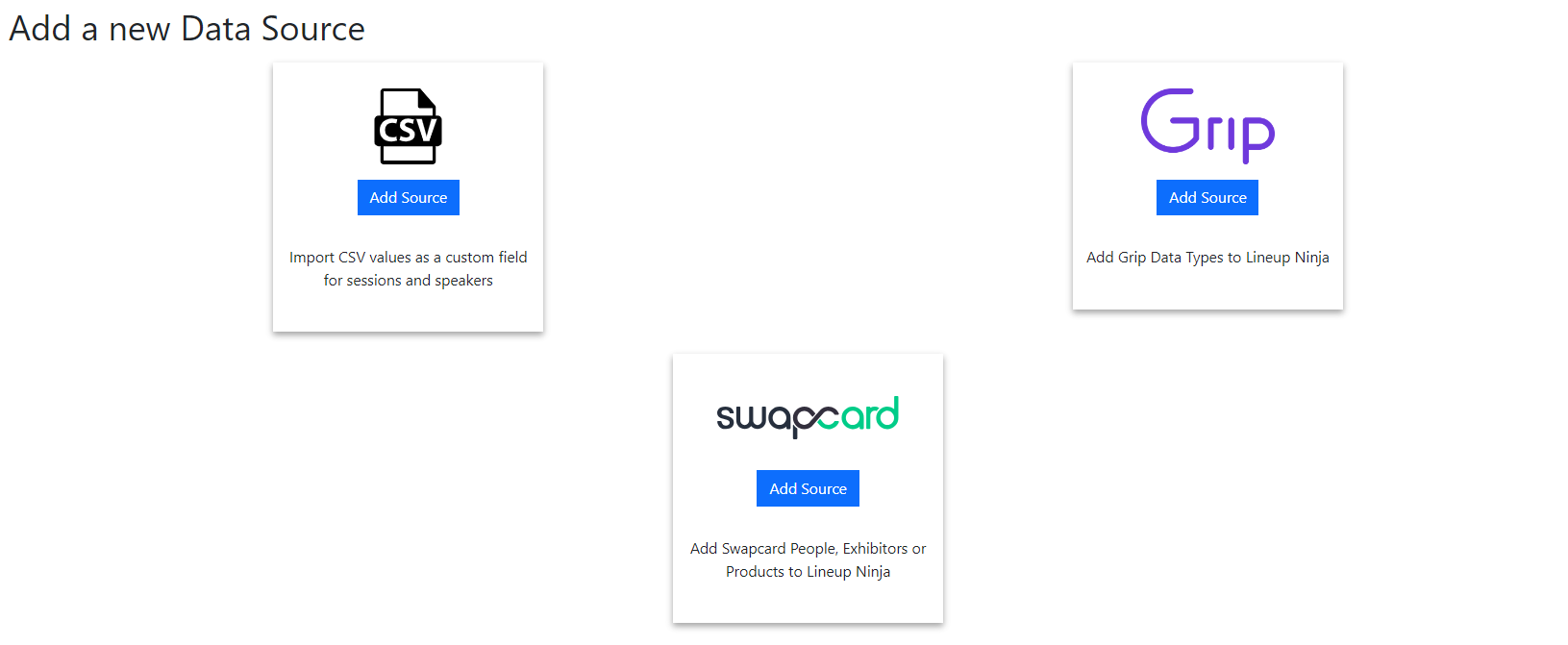
Start by navigating to > and choose ‘Add Source’ under the LiveBuzz logo.
You will now be presented with a screen of configuration. The fields are as follows:
- Name - This name will be used to show the data source in the left hand menu
- Icon - Choose an icon that will help you recognize this particular data source
- Environment - The LiveBuzz environment for your event. You can find this in your LiveControl URL.
- Campaign - The LiveBuzz campaign for your event. This also appears in your LiveControl URL.
- Type - Currently fixed to ‘Exhibitor’. Other types may be available in future.
To find the Environment and Campaign values, log in to LiveControl and look at the address in your browser. It will look like this:

In this address:
- The ‘Environment’ is ’livebuzz’
- The ‘Campaign’ is ’lb-event-2023’
Input the equivalent values for your address into the configuration.
Lineup Ninja Support Step
The first time you use a campaign or environment the Lineup Ninja support team may need to do some work behind the scenes to get you set up. If this is required you will see a message notifying you and a support ticket will be raised on your behalf.
The team will be in touch as soon as they have completed the necessary steps. If you have already configured a LiveBuzz publish target for the same environment and campaign, no additional authorization step is required — the existing access applies to the new data source automatically.
Once your source is configured, press ‘Fetch Source’ to pull the current Exhibitors from LiveBuzz into Lineup Ninja.
How do I match Lineup Ninja Speakers to imported LiveBuzz Exhibitors?
Once the ‘Fetch Source’ has run you will see a new menu item in the Agenda Planning section. The name and icon will match your configuration.
You will see a list of all imported LiveBuzz Exhibitors and the Lineup Ninja Speakers that are linked to each one. You can link multiple Speakers to a single Exhibitor — for example, all of the staff representing a single exhibiting company.
To change a link, edit the row with the pencil and choose the Speaker.
How do I pull in new Exhibitors?
Lineup Ninja does not poll LiveBuzz automatically. Press ‘Fetch Source’ on the data source whenever you want to pull the latest Exhibitors — new Exhibitors will appear, and any that have been removed or moved to an excluded status will disappear.
Which Exhibitors are imported?
Lineup Ninja imports every LiveBuzz Exhibitor whose status is active, pending, or incomplete. Exhibitors that are cancelled, duplicate, or rejected are not imported.
If an Exhibitor is removed from LiveBuzz, or its status moves to one of the excluded values, it will disappear from Lineup Ninja on the next ‘Fetch Source’.
Still can’t find what you’re looking for? Email support@lineupninja.com and one of the team will get back to you as soon as possible.