Email Activity
The Email Activity page lists the emails Lineup Ninja sends to your speakers, submitters, reviewers and team members, and whether each one was delivered. Use it to answer “did they get my email?” and to resend an email that didn’t arrive.
What does it show?
The emails listed include:
- Login Link emails
- Content Portal emails
- Submission emails
- Speaker Task and Session Task emails
- Speaker Confirmation emails
- Reviewer emails
- Team membership welcome emails
Each row shows the recipient, subject, type and current delivery status. Open an email to read it exactly as it was sent and see its delivery timeline.
Note
The Email Activity page tells you whether an email was delivered to the recipient’s mail server. It does not track whether the recipient opened the email or clicked any of its links.
Where do I find it?
- For one event – navigate to > . This page shows the emails sent for that event.
- For your whole team – navigate to > . This page brings together the emails from every event in the team that you can manage.
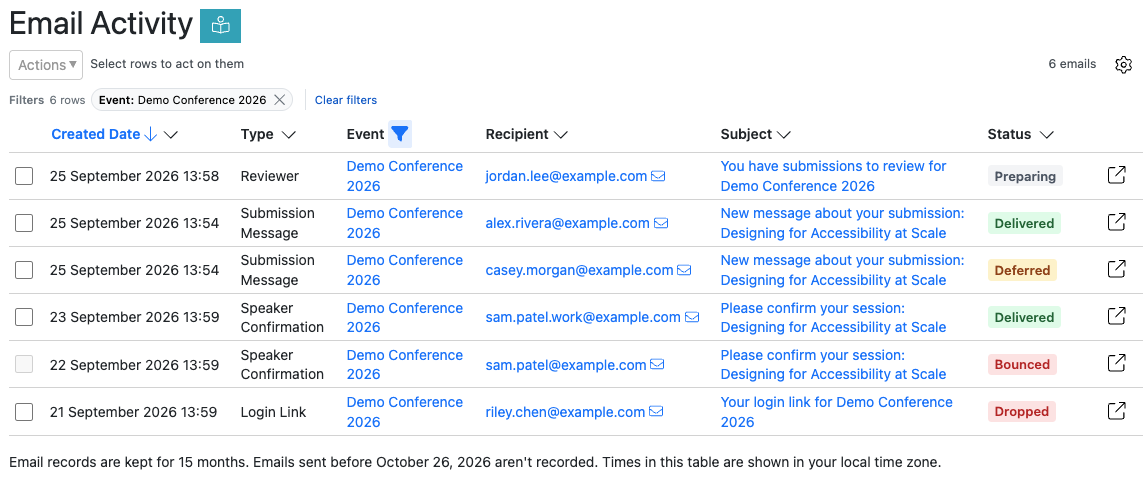
Dates and times on the event page are shown in the event’s timezone. The team page lists emails from events in different timezones, so it uses your computer’s timezone.
Who can see it?
The Email Activity pages show the contents of emails sent to your speakers, submitters and reviewers, so only team members who can manage an event can see its emails. See Team Roles for more about each role.
| Role | Event page | Team page |
|---|---|---|
| Admin | Every event | Every event’s emails, plus emails that don’t belong to any event (such as team membership welcomes) |
| Event Manager | Every event | Every event’s emails |
| Custom | Events where they have Manager access | Emails for the events where they have Manager access. The page is only available if they have Manager access to at least one event |
| Event Viewer | No access | No access |
| Reviewer | No access | No access |
What do the statuses mean?
The statuses are:
| Status | What it means |
|---|---|
| Preparing | Lineup Ninja is preparing the email to send. |
| Queued | The email has been handed to our email delivery provider and is waiting to be sent. |
| Delivering | Our email delivery provider has accepted the email and is sending it. |
| Failed | The email couldn’t be handed to our email delivery provider, so it was never sent. |
| Deferred | The recipient’s mail server has temporarily refused the email. Delivery will be retried automatically. |
| Delivered | The recipient’s mail server accepted the email - see the tip below if a user says they haven’t received it. |
| Bounced | The recipient’s mail server rejected the email, for example because the address doesn’t exist. |
| Dropped | The email was not sent because the address is on a do-not-send list, for example because it bounced before. |
| Marked as Spam | The recipient reported the email as spam. |
Tip
Delivered — but not received? Delivered means the recipient’s mail server accepted the email. It may still have been filtered into a junk or spam folder, or held by the recipient’s organization. See Common email delivery problems and Ensuring Email Delivery for what to try next.
Viewing an email
To open an email, click its subject, or click the open button at the end of its row. The email’s details show:
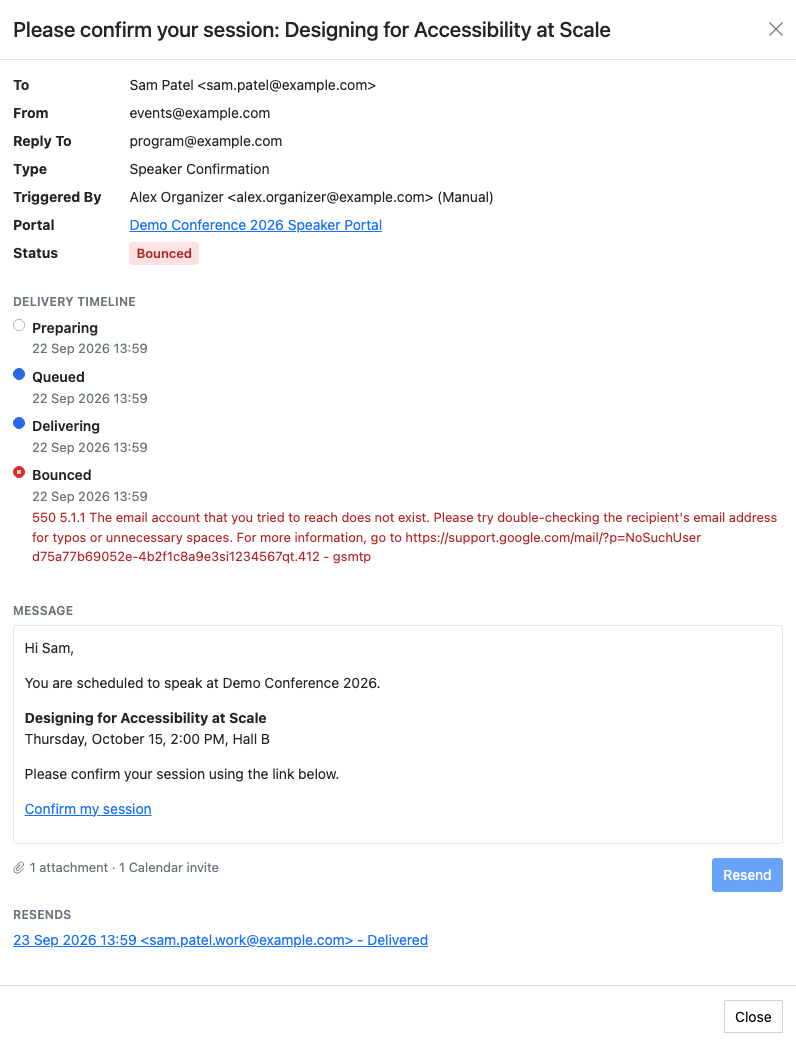
- To, From and Reply To – the addresses the email was sent to and from.
- Type – what kind of email it was, such as Submission Stage or Speaker Task Message.
- Triggered By – who or what caused the email to be sent. For example, Jane Smith <jane@example.com> (Resend). Emails sent on a schedule show Scheduled with no name or address.
- Portal – the portal the email came from, if any. Click the portal’s name to open it.
- Status – the email’s current delivery status.
- Delivery timeline – each step of the email’s delivery, with its date and time. Any reason given for a delay or failure is shown here.
- Message – the email exactly as it was sent. Links in the email can’t be clicked. Login links are shown as a placeholder, because the link itself is never stored. A new one is created each time the email is sent.
- Attachments – how many attachments the email had, and what type, such as a calendar invite.
- Resends – if the email has been resent, each resend is listed with its date and time, email address and delivery status. Click a resend to open it.
- Resend Of – if the email is itself a resend, click Original Row to open the email it was resent from.
Resending
You can resend an email to its original recipient, or send it to someone else.
A resend is the original email exactly as it was sent, except that any login link is replaced with a new one.
Resend one email with the Resend button in its details, or several at once by ticking their rows and choosing Resend from the Actions menu at the top left of the table. Either way, you then choose who to send it to and click Resend. In the Send to options you can choose:
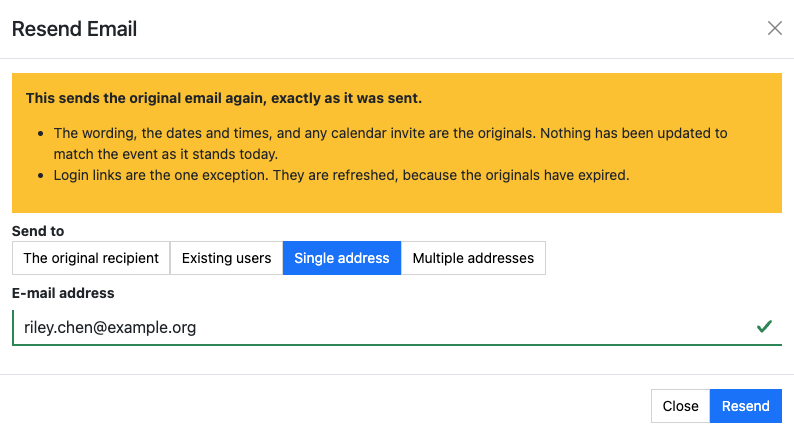
- The original recipient (or Each email’s original recipient when resending several emails)
- Existing users – pick from the event’s speakers, submitters and reviewers. This option is only offered for emails that belong to an event.
- Single address – type one email address
- Multiple addresses – type several email addresses, one per line or separated by commas. Each address receives its own copy.
Info
You can only tick emails on the page you are viewing. There is no option to select every email in the list, and moving to another page clears your selection.
Warning
When you send an email to someone else:
- The email isn’t rewritten for the new recipient – any names or details in it are still the original recipient’s.
- Any login link in the email signs the new recipient in as the original recipient. If there’s a login link in the email, you’ll see a red warning in the resend window showing whose account the new recipient will get access to.
Only send an email containing a login link to someone else when you are happy for them to act as the original recipient.
What can’t be resent?
Some emails can’t be resent. Their tick box is disabled, and the Resend button is grayed out. Hover over it to see why:
- The recipient reported the email as spam.
- The email can’t be reproduced. Account emails that contain a password or a verification code can’t be resent.
- The email contains a login link that can’t be resent for security reasons.
- The email bounced or was dropped, and it has already been resent or is itself a resend. A bounced or dropped address gets one retry.
Delivery status in message threads
The message threads on a Submission, a Speaker Task and a Session Task also show whether each message’s email was delivered. Messages that sent an email have a Status row, with one label for each status and the number of addresses at that status, for example 1 Deferred 1 Delivered.
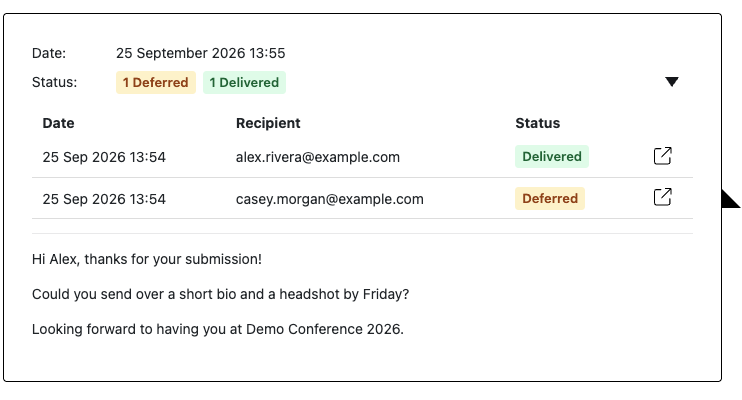
Messages that submitters or speakers send to your team show a Status row too. It shows whether the notification emails sent to your team members were delivered.
Click the Status row to see each address and its status, and click the open button at the end of a row to open that email.
The Status row is only shown to team members who can see the event’s Email Activity page (see Who can see it?). Event viewers, reviewers, submitters and speakers don’t see it.
How long are records kept?
Email records are kept for 15 months and then deleted. Once a record has been deleted it no longer appears on the Email Activity pages or in message threads.
The Email Activity pages only include emails sent from October 26, 2026, when the feature was introduced. Emails sent before then aren’t listed, and older messages in message threads have no Status row.
Still can’t find what you’re looking for? Email support@lineupninja.com and one of the team will get back to you as soon as possible.